> For the complete documentation index, see [llms.txt](https://documentation.siteglide.com/llms.txt). Markdown versions of documentation pages are available by appending `.md` to page URLs; this page is available as [Markdown](https://documentation.siteglide.com/site-manager/templates.md).
# Templates (Pages & Email)
Templates are used for organising the repeatable content you will want to display on multiple pages, including Headers and Footers. You can also use Templates for Emails.
## Introduction
Page Templates are used to easily and consistently apply the same global content to pages, such as: Headers, Footers, Global Stylesheets and Analytics Tracking Scripts.
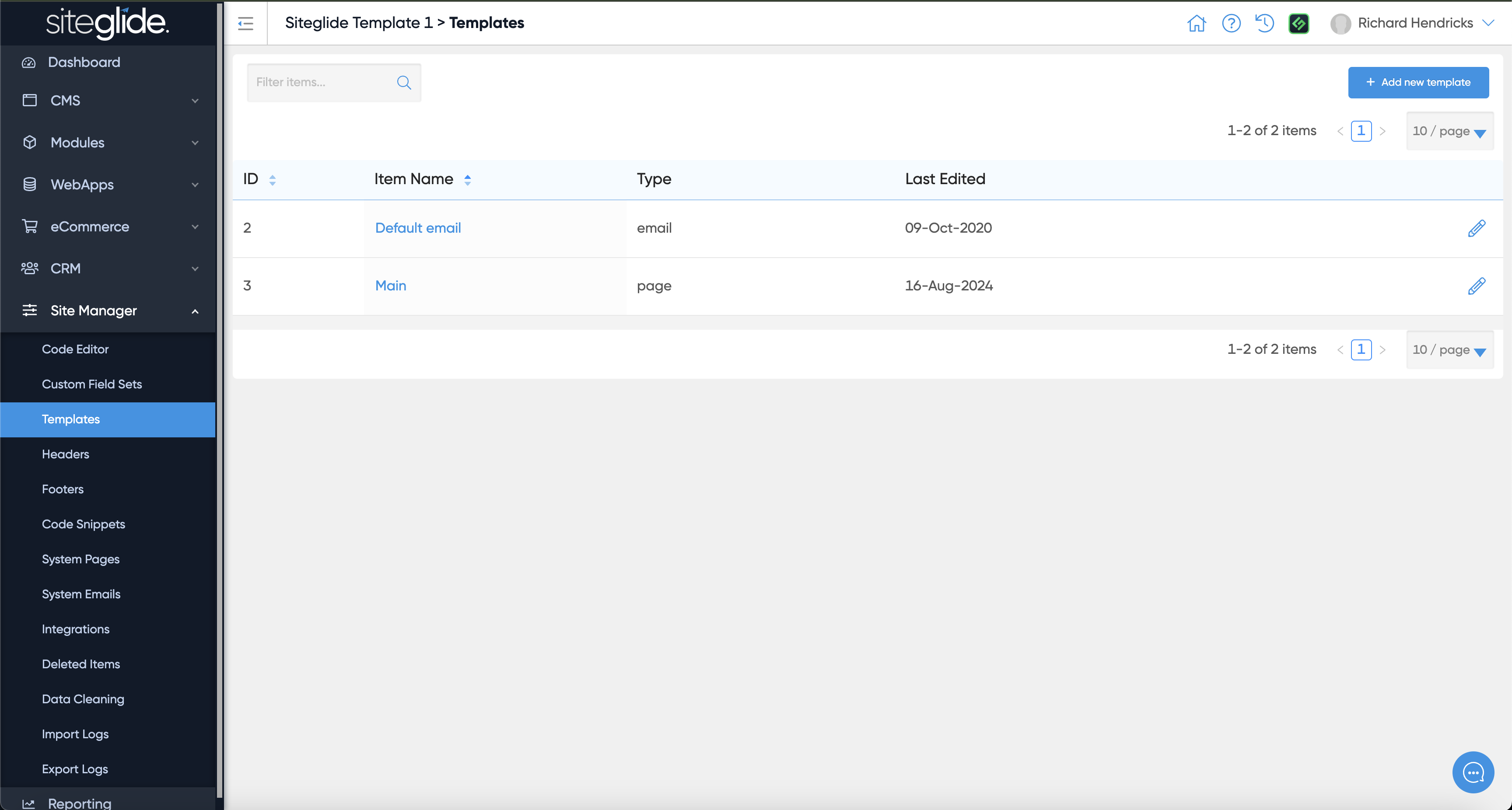
You can find Templates under Site Manager:
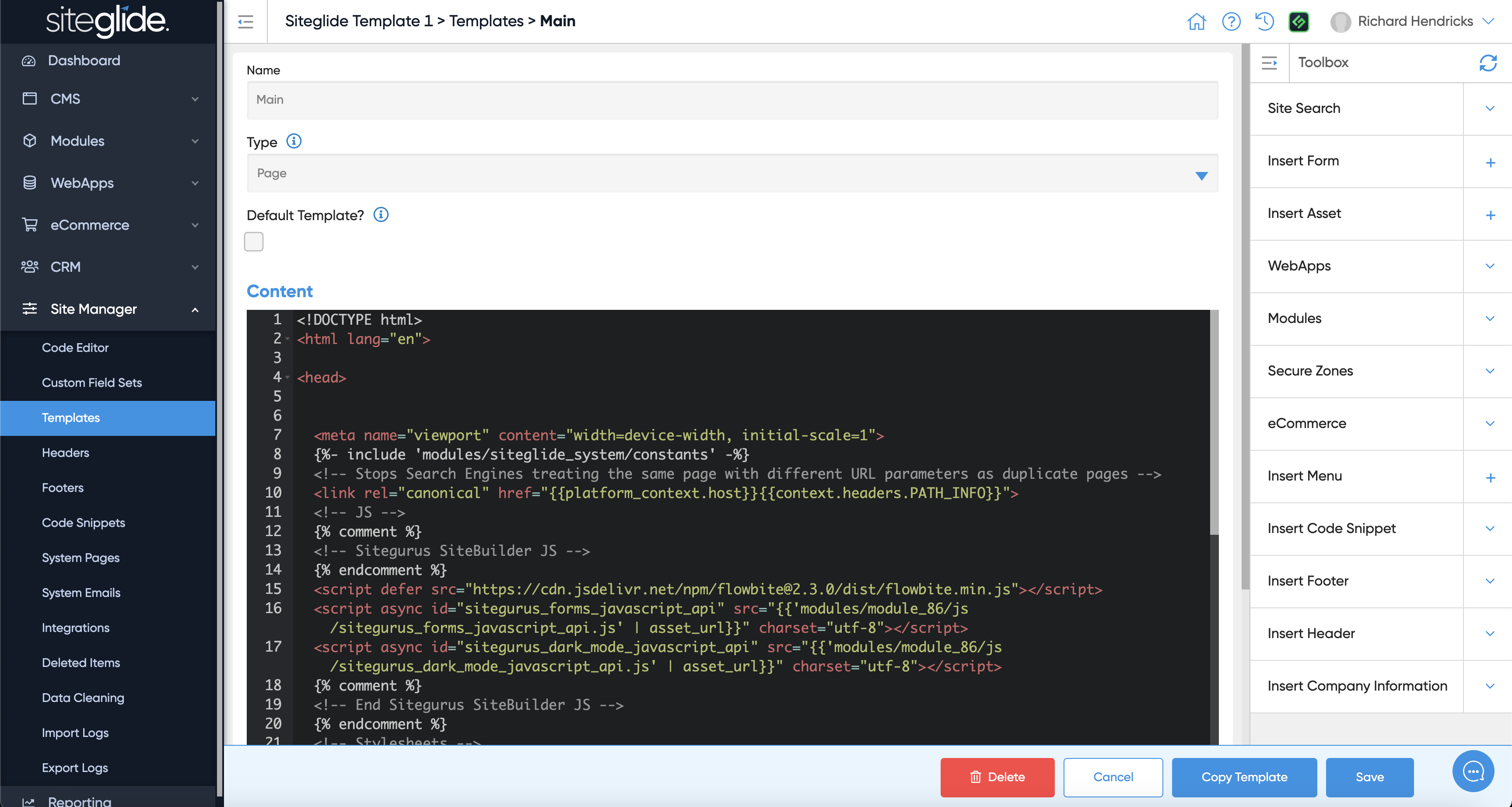
We recommend editing Templates via CLI but the Toolbox feature is useful when inserting Siteglide features/code:
## An Example Page Template
Page content will be outputted where the liquid tag `{{content_for_layout}}` is located within your Template.
Here is how a generic Page Template file should be structured:
```liquid
{% include 'site/constants' -%}
{% include 'code_snippet', item: '1', name: 'SEO' -%}
{% include 'code_snippet', item: '2', name: 'HTML Head' -%}
{% include 'site/visualEditor'-%}
{% include 'header'
template: "1"
header_image: "images/fido/logo-white-bg.svg"
group_id: "11149" -%}
{{content_for_layout}}
{% include 'footer', template: "1" -%}
{% include 'site/visualEditor' type: 'js'-%}
```
While editing a Page, you can assign a Template using the Page Template drop down and then clicking Save.
Note: Toolbox functionality will soon be added to the templates section of Admin, allowing you to easily select elements to add to the page.