> For the complete documentation index, see [llms.txt](https://documentation.siteglide.com/llms.txt). Markdown versions of documentation pages are available by appending `.md` to page URLs; this page is available as [Markdown](https://documentation.siteglide.com/reporting/building-reports.md).

# Quickstart: Reports

The Reporting tool allows you to build dynamic reports related to CRM usage and Form Cases. You can choose which Fields to include and filter the results. Once a Report is Saved you can go back to this at any time and see the results with live data.

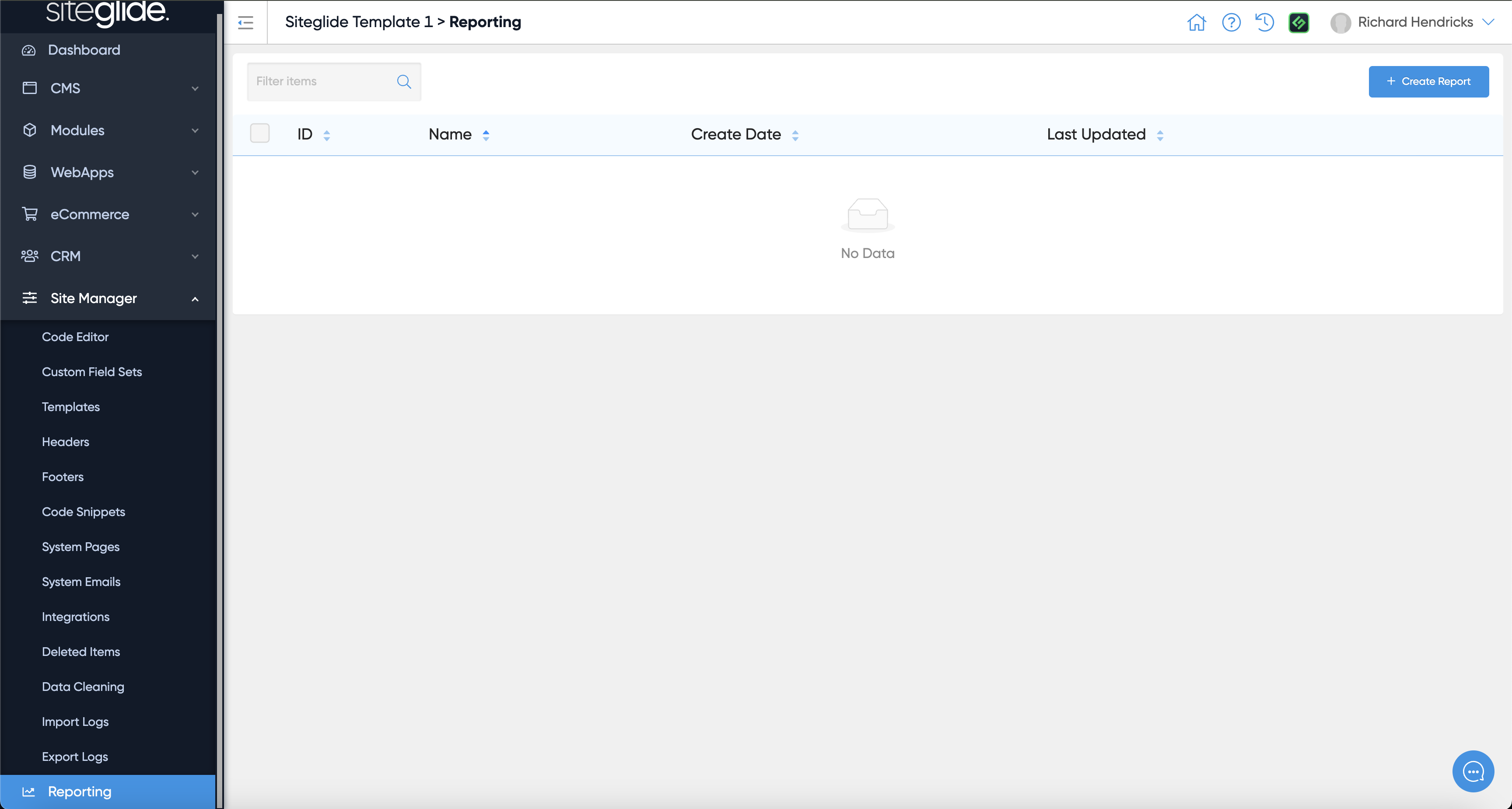
If you've not created any reports this area will be blank:

<figure><img src="https://584571746-files.gitbook.io/~/files/v0/b/gitbook-x-prod.appspot.com/o/spaces%2Ft7n2OYNNUr9PgpkBD2eX%2Fuploads%2Fgit-blob-2680ae9f2b944a187fa6f3c4ea67acac67f6746d%2FSiteglide-Site-Manager-Reporting-Blank.png?alt=media" alt=""><figcaption></figcaption></figure>

## Step 1: Create a Report

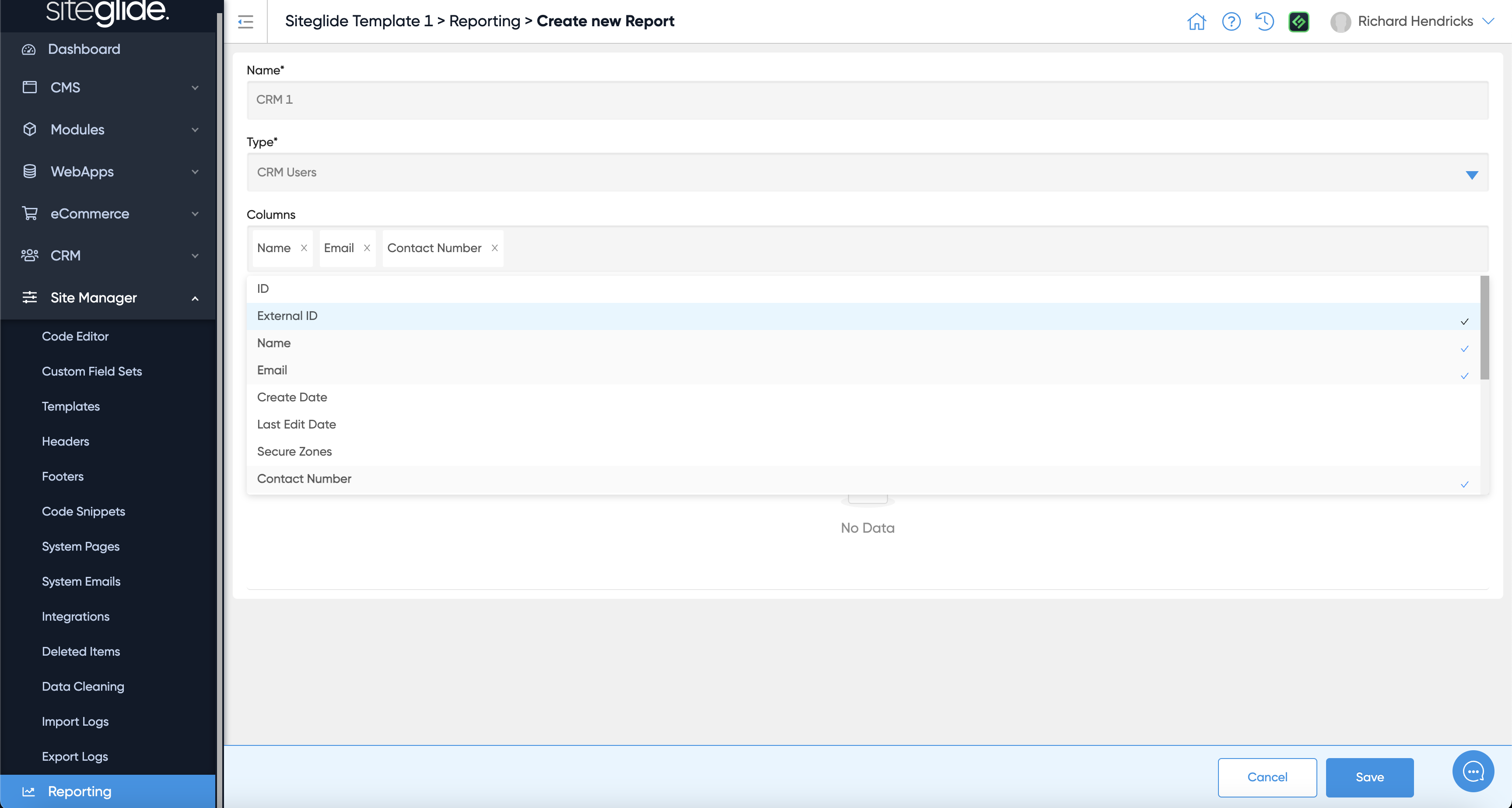
When creating a new Report simply give it a name, decide if you're querying the CRM Users Database or the Cases Database and then pick the Fields you want to include:

<figure><img src="https://584571746-files.gitbook.io/~/files/v0/b/gitbook-x-prod.appspot.com/o/spaces%2Ft7n2OYNNUr9PgpkBD2eX%2Fuploads%2Fgit-blob-7ddb13a0638452d1c109431d57740ae95424f02d%2FSiteglide-Site-Manager-Reporting-Create.png?alt=media" alt=""><figcaption></figcaption></figure>

## Step 2: Run the Report

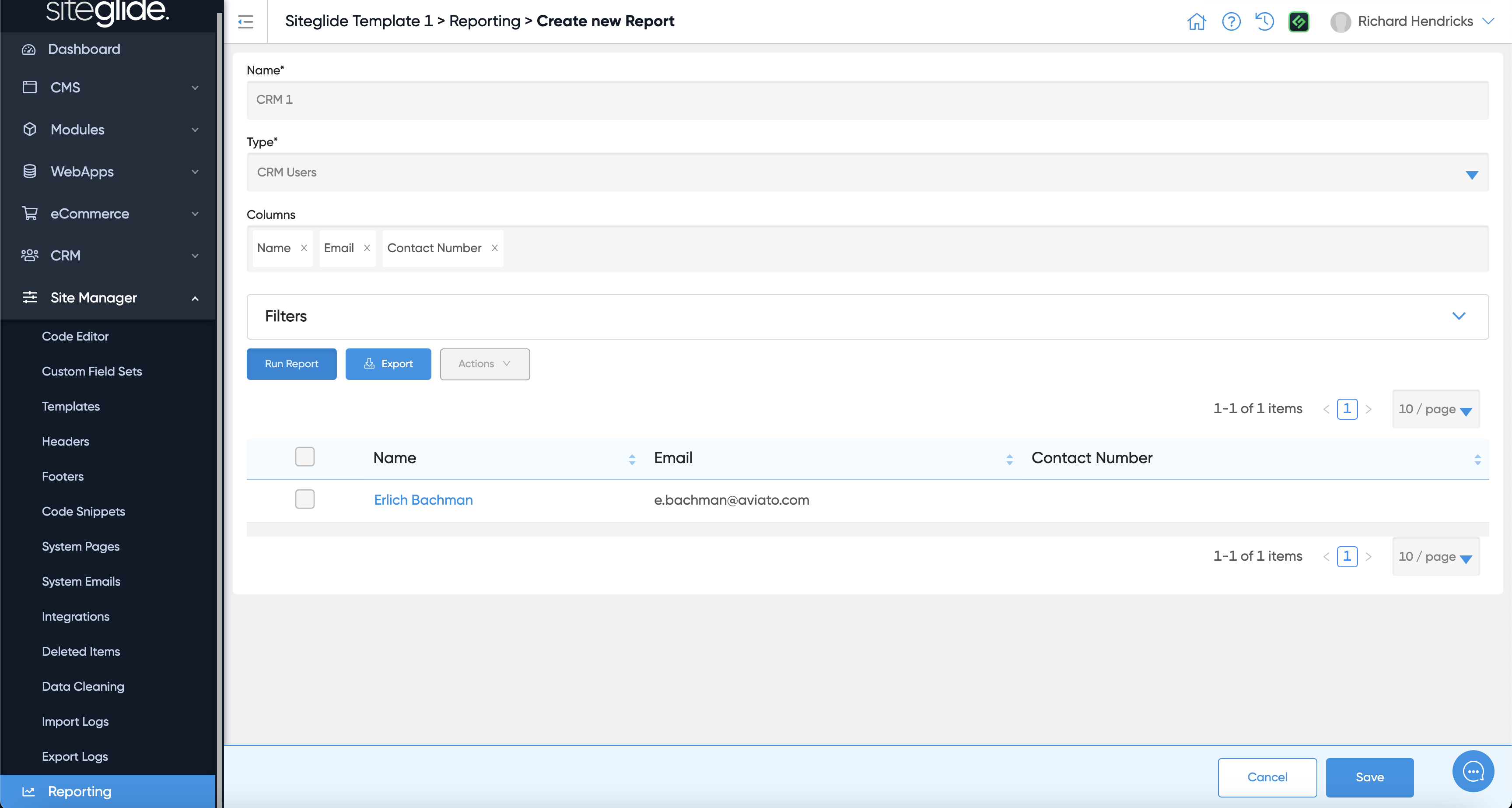
You can then run the Report and see the results.

<figure><img src="https://584571746-files.gitbook.io/~/files/v0/b/gitbook-x-prod.appspot.com/o/spaces%2Ft7n2OYNNUr9PgpkBD2eX%2Fuploads%2Fgit-blob-e4d25981108016c634346503897739401e554f2c%2FSiteglide-Site-Manager-Reporting-Results.png?alt=media" alt=""><figcaption></figcaption></figure>

## Step 3: Export or Apply Actions

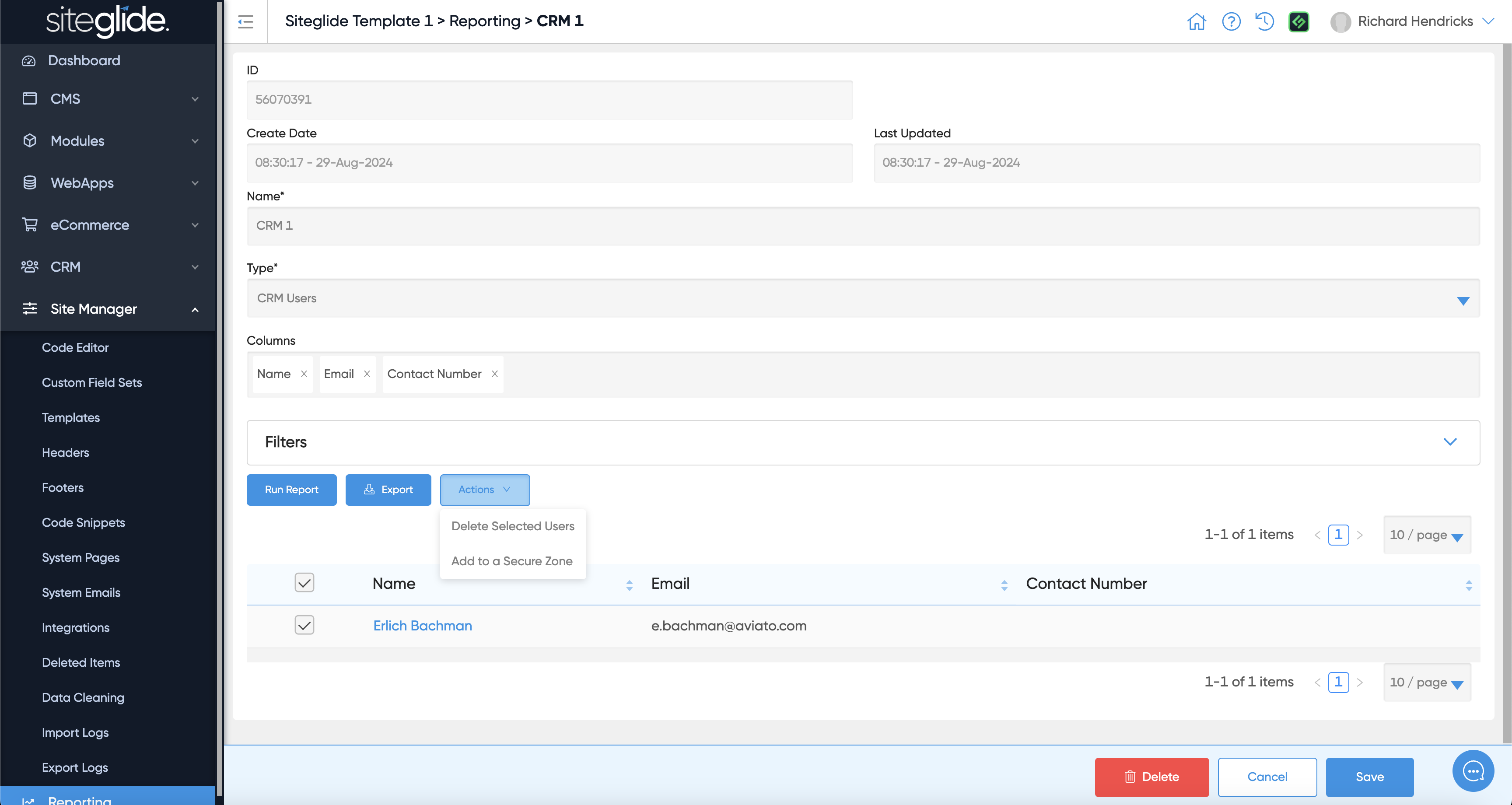
You can also Export the Results and perform Actions on the results:

<figure><img src="https://584571746-files.gitbook.io/~/files/v0/b/gitbook-x-prod.appspot.com/o/spaces%2Ft7n2OYNNUr9PgpkBD2eX%2Fuploads%2Fgit-blob-a4b402ec3d7bddd9f3d4aead4130917fdfb36cfa%2FSiteglide-Reporting-Actions.png?alt=media" alt=""><figcaption></figcaption></figure>

## Step 4: Revisit Saved Reports

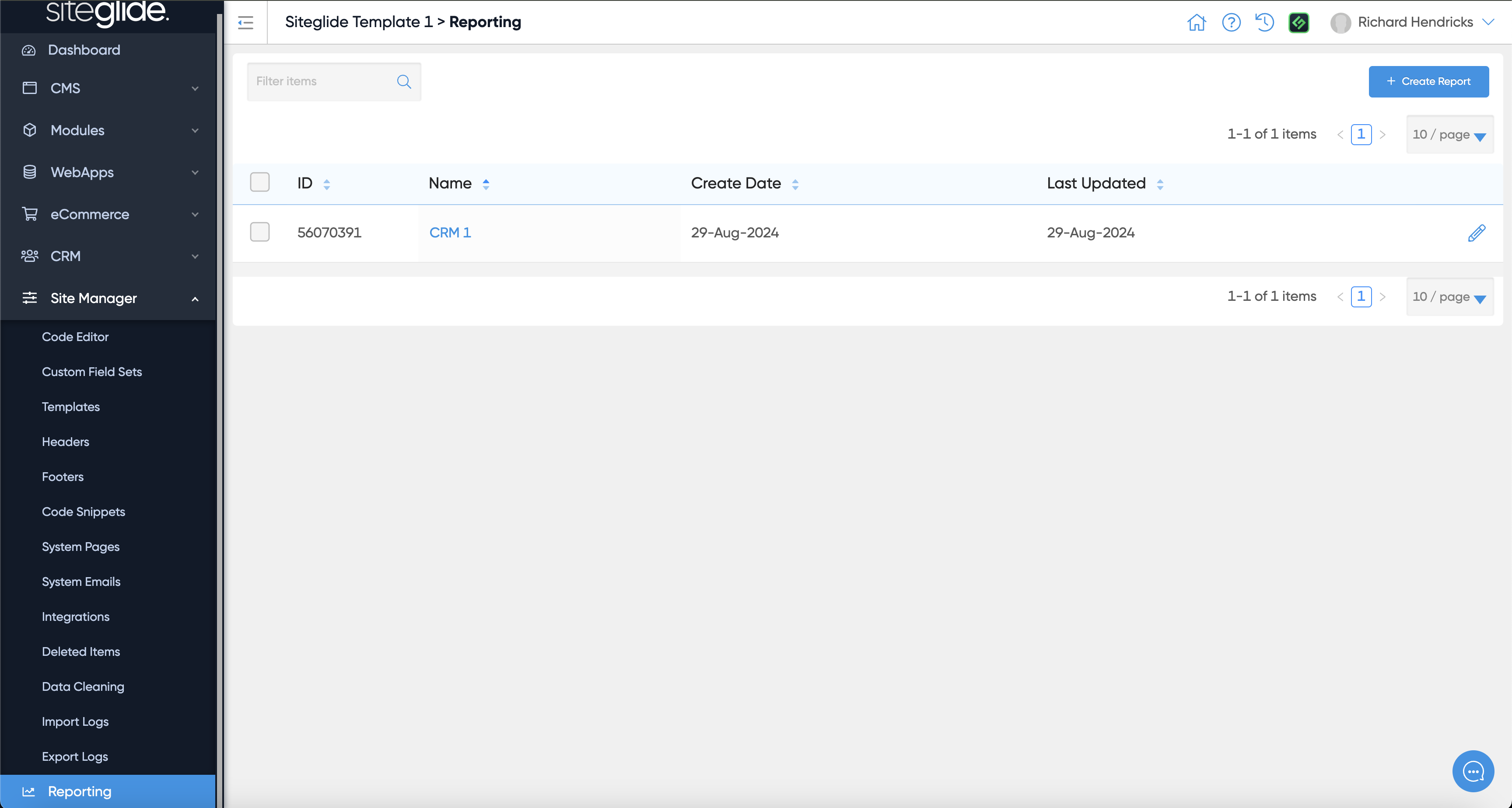
Once a Report is saved it will appear in the List:
<figure><img src="https://584571746-files.gitbook.io/~/files/v0/b/gitbook-x-prod.appspot.com/o/spaces%2Ft7n2OYNNUr9PgpkBD2eX%2Fuploads%2Fgit-blob-96d221587c89e21210b7776331f1c098b31dae0f%2FSiteglide-Site-Manager-Reportin-List.png?alt=media" alt=""><figcaption></figcaption></figure>