> For the complete documentation index, see [llms.txt](https://documentation.siteglide.com/llms.txt). Markdown versions of documentation pages are available by appending `.md` to page URLs; this page is available as [Markdown](https://documentation.siteglide.com/modules/core-modules/menubuilder/quickstart-menu-builder.md).
# Quickstart: Menu Builder
## Step 1: Create a Menu or Edit and Existing:
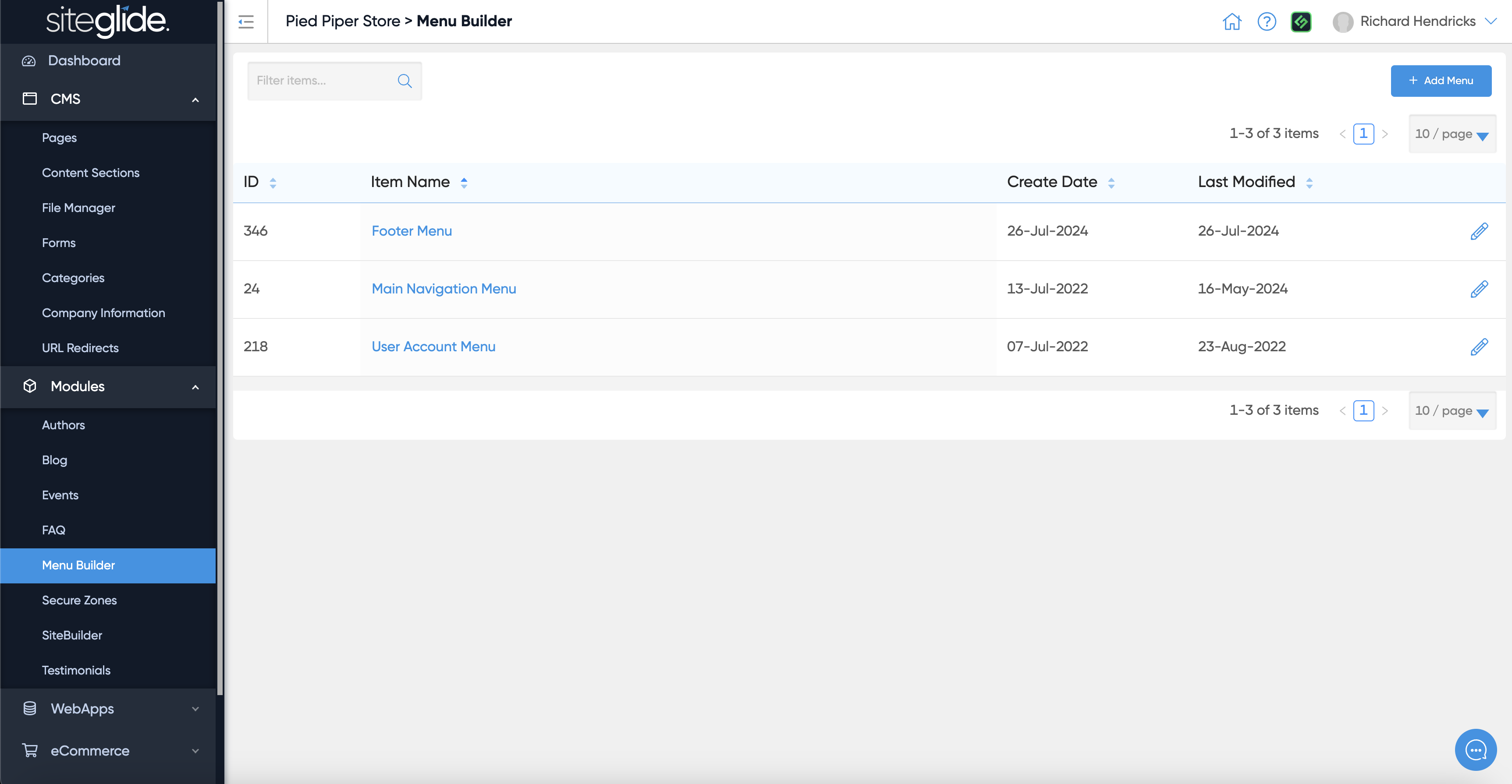
Menu Builder sits under Modules and within there you will see any existing Menus or can create a new one:
## Step 2: Manage Items
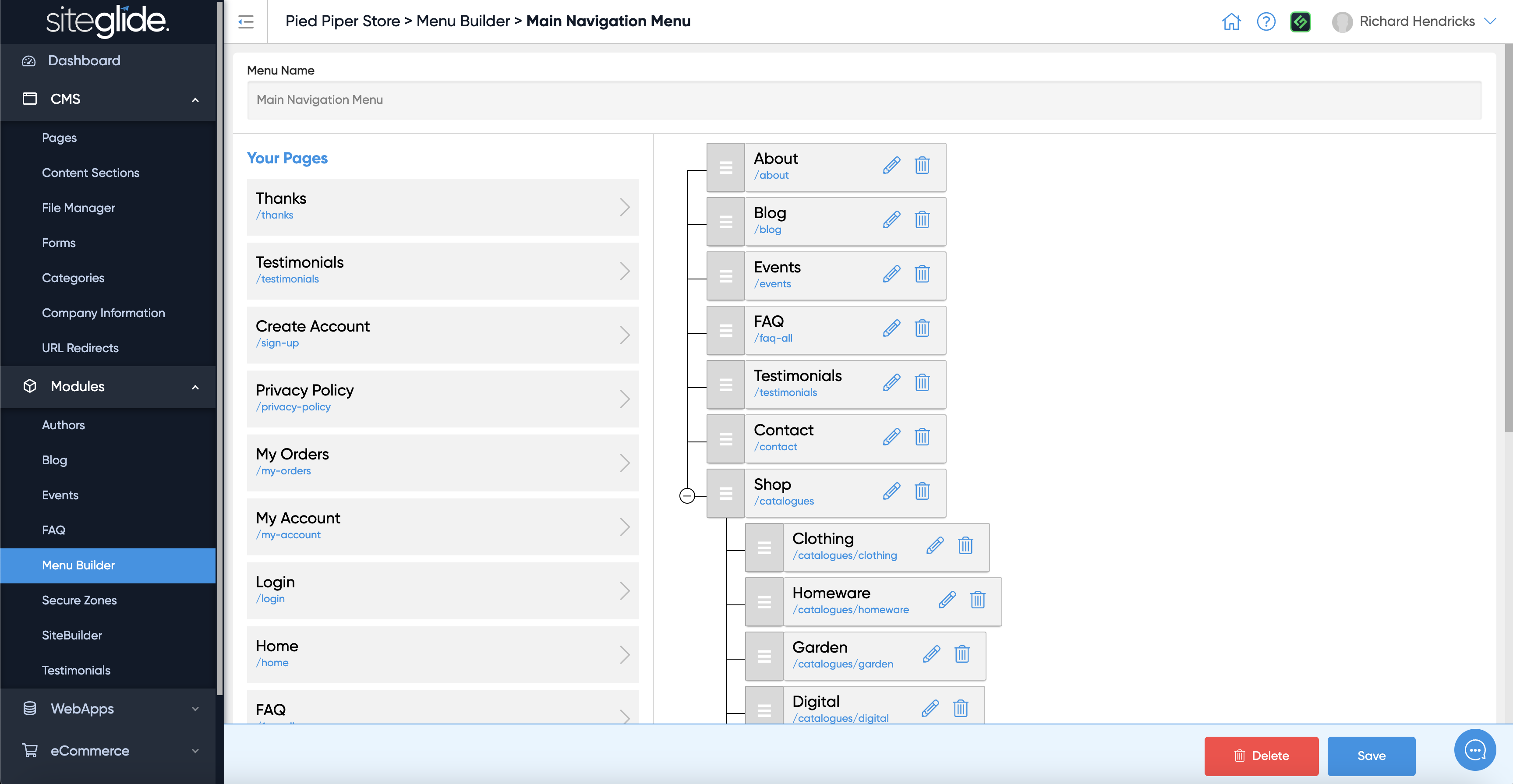
Add Pages and use the drag and drop tool to re-order or create hierarchy/drop-downs:
## Step 3: Edit Items
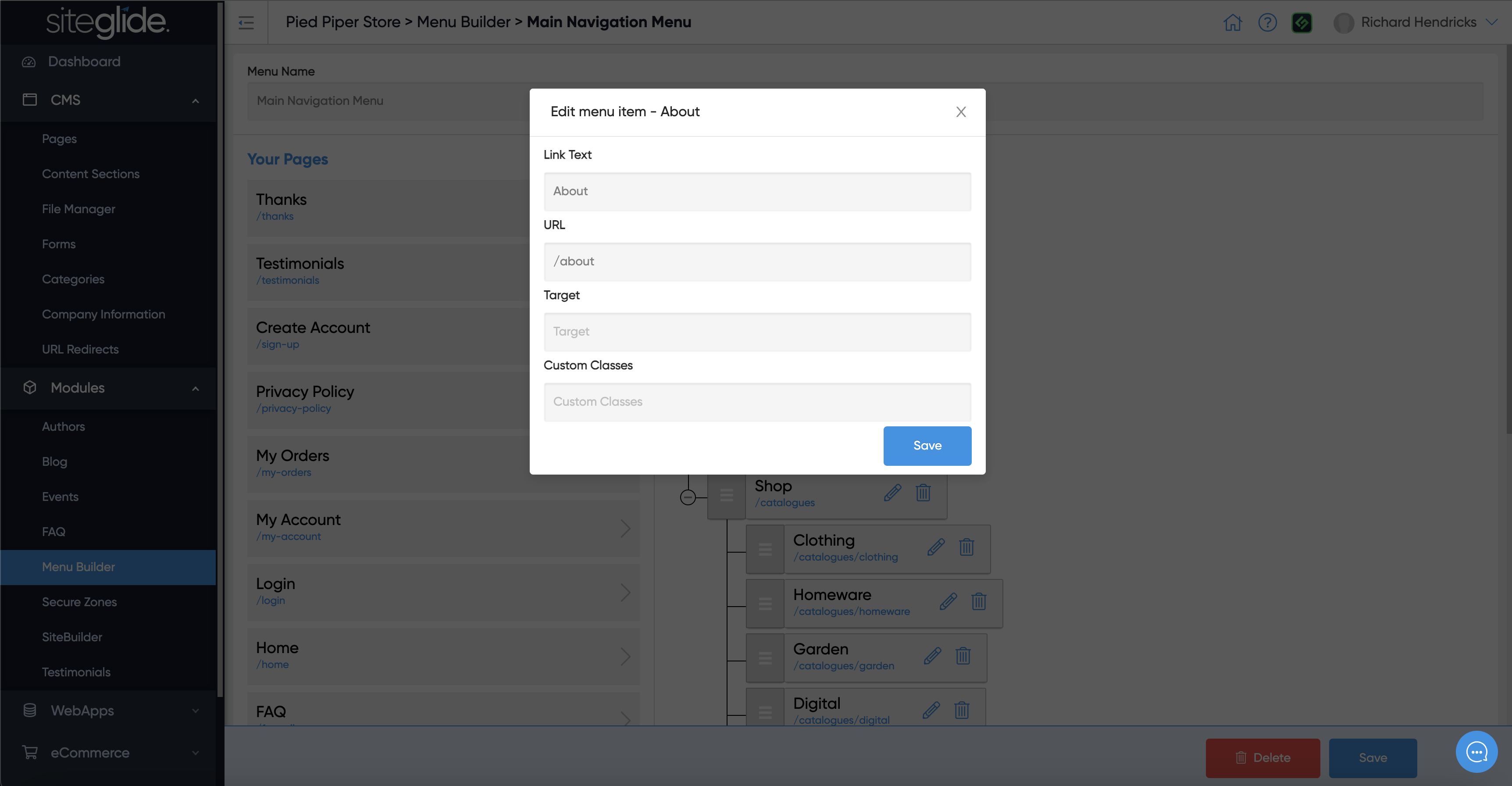
You can edit the Name, URL, Target and Custom Classes of any items:
The most likely Target setting you'd want to add would be '\_blank', this would open in a new tab when clicked:
```
_blank
```
If you know any specific CSS classes you can add them, this might be to define an item as a parent item for example.